How to Use Google Classroom for Teachers
Google Classroom serves as a bridge to online education. It has made the learning process seamless when schools closed and students had to learn at home. Teachers can use the platform to direct and assess their students remotely using a few clicks only. Here’s how:
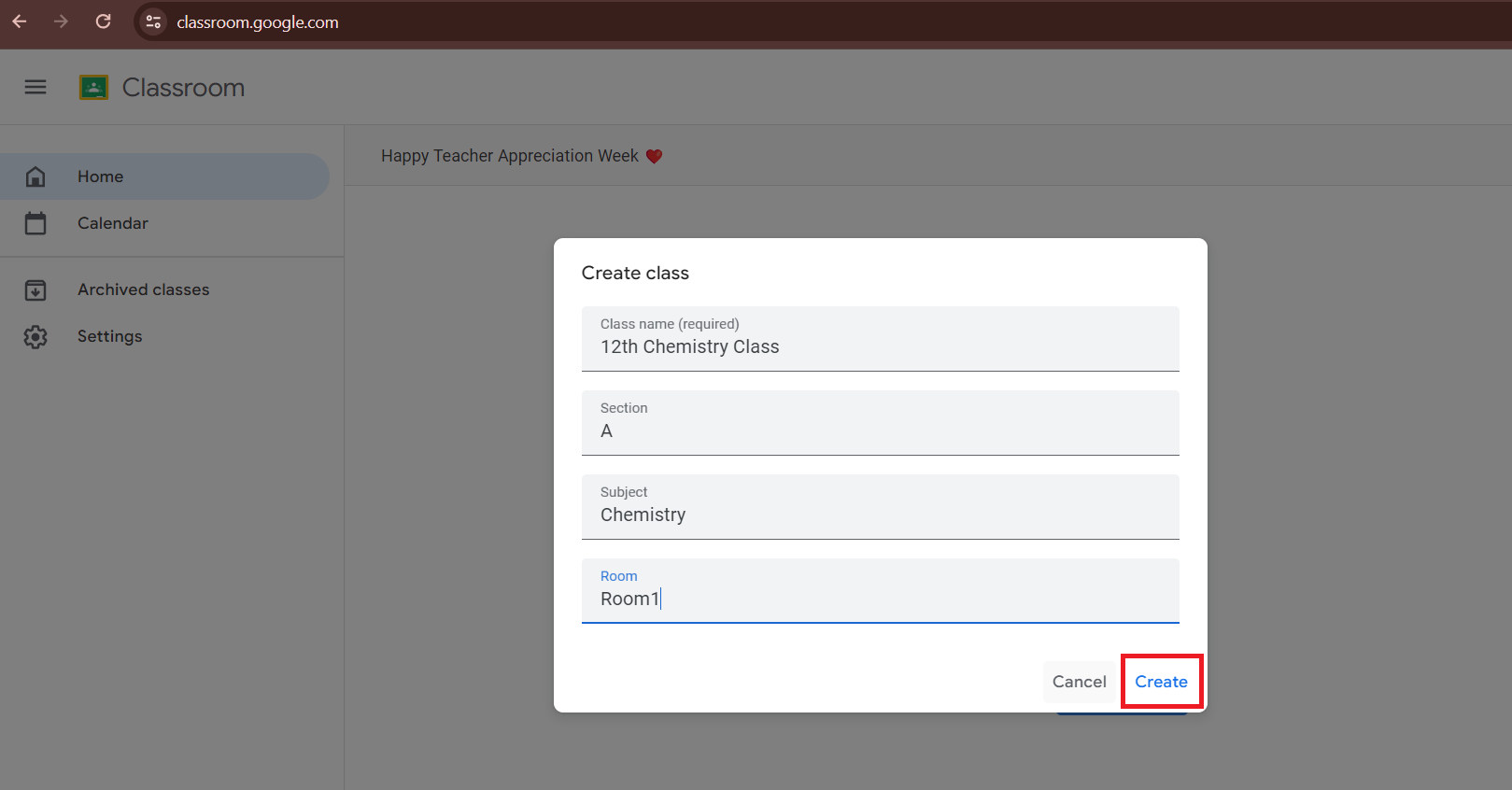
Step 1: Create a Google Classroom as a Teacher
You can set up a class where you can allocate tasks and post some notifications to the students. If your school facilitates a Google Workspace for Education account, you employ that email to create your classes. Otherwise, you can start a class using a personal Google Account.
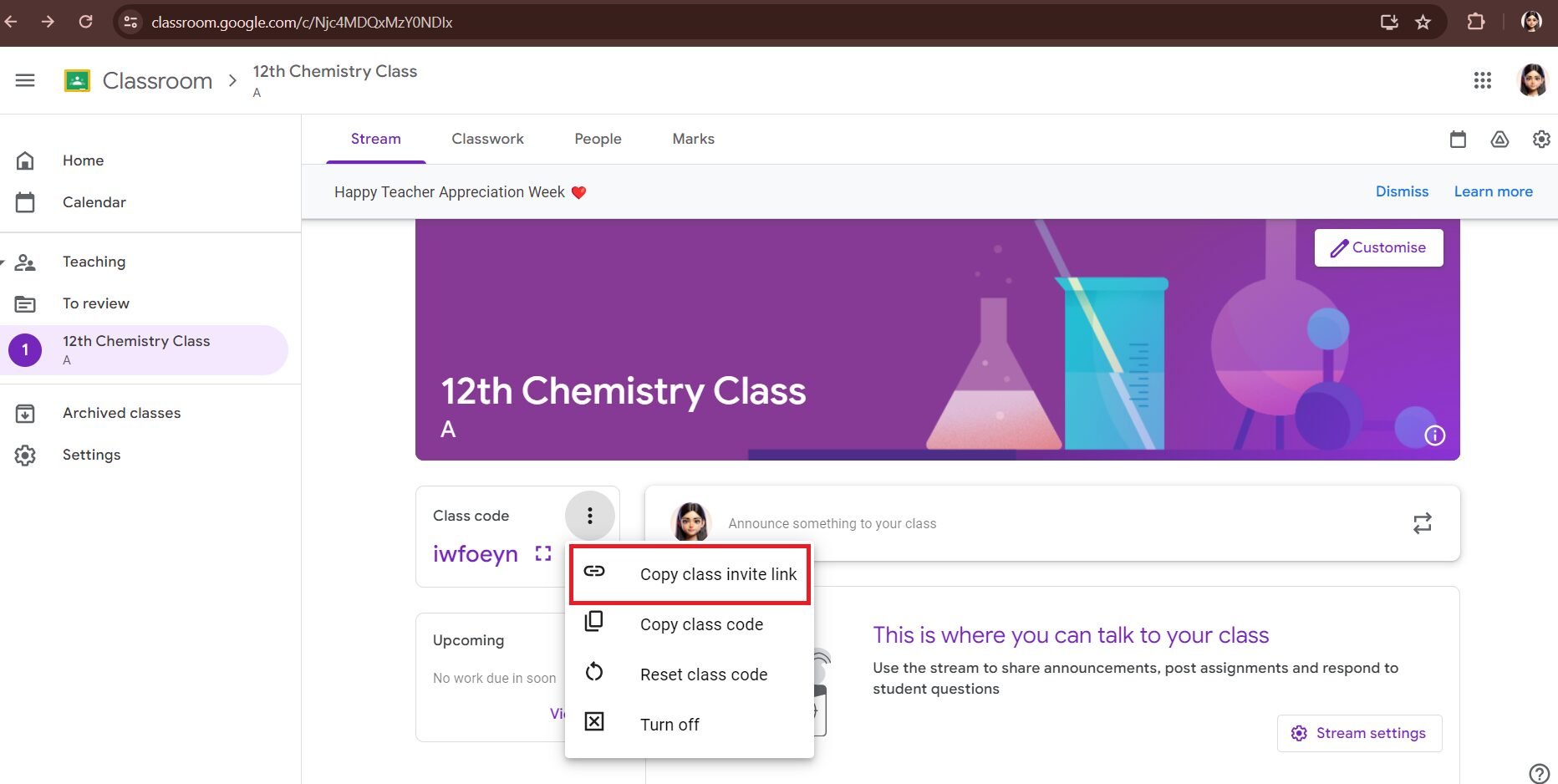
This classroom gives you a class code you can use to bring students into the class. At any time the class code is available at the top of the class stream.
Step 2: Copy the Invite Link
Each time you create a class, you are assigned an invitation link. You can send the link to students in advance so that they automatically become part of the class. To share an invite link
You can paste the link into any messaging app and send it to students as shown in step 3. Students can click on the link and it will take them to the class.
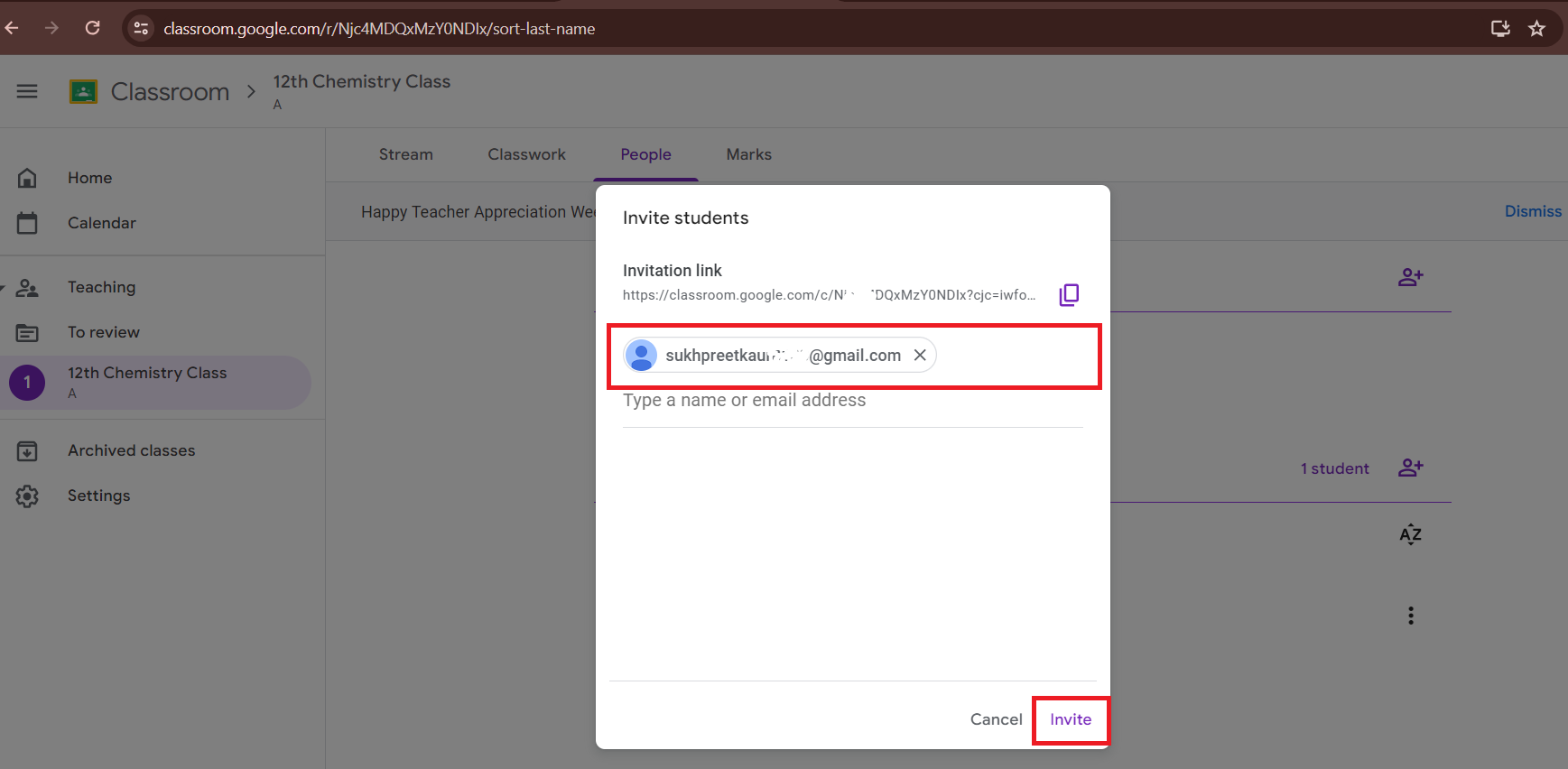
Step 3: Invite Students with an Email Invite
After creating a class, you can send an email invitation to students individually or as a group. Through the email, they can either accept the invite or click Join this Classroom to enter the class. To contact a group of students, you can use the email alias of the Google group. If you can’t see group members’ emails ask the administrator to modify the setting.
If you encounter an error when adding an email address, it’s likely because the email does not belong to your school’s domain.
How to Post an Assignment in Google Classroom
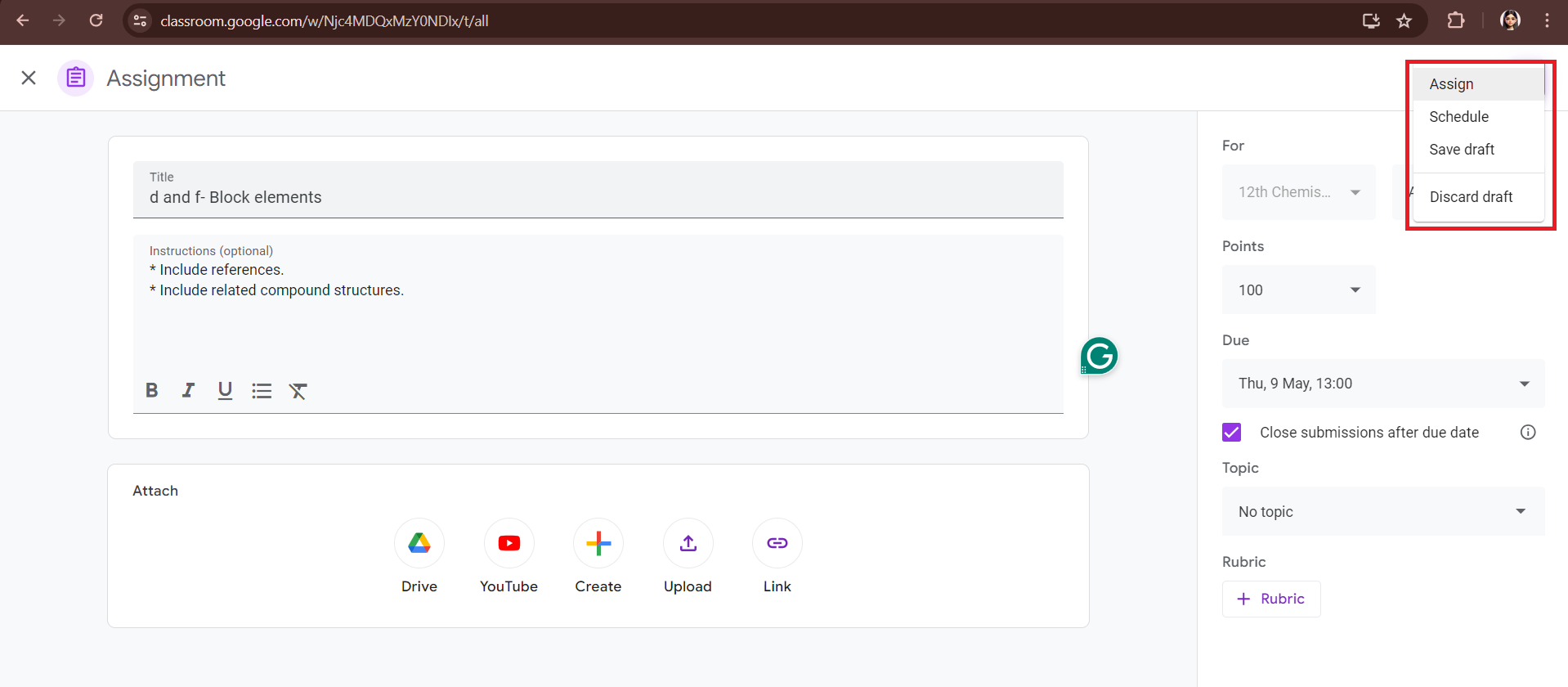
Google Classroom provides an easy tool for teachers to assign tasks to their students within their digital classroom. As students complete their work and submit it to you, you can mark and give the marked work back to them.
Classroom allows you to schedule the task distribution or publish it immediately. You can attach YouTube links or other documents with it. Also, you can set a due date to submit the assignment and select the students to whom you want to send the assignment. Also Read: How to Delete Google Classroom Assignment Google Classroom, which seeks to go beyond the limitations of traditional instruction, becomes teachers’ torch of innovation. We hope this guide helps teachers use Google Classroom with ease. Feel free to share your queries and suggestions in the comments area below. Check the Techcult website for more useful guides.