How To Restart TikTok
Method 1: Remove TikTok from Recents
The first method to follow to restart TikTok on an Android device includes removing the app from recents. To know more, follow these steps:
First, minimize TikTok by pressing the back button on the phone.
Now, swipe up to open the recent apps menu.
Then, swipe up the TikTok window to prevent it from running in the background.
Reopen the application to restart it.
Method 2: Restart Phone
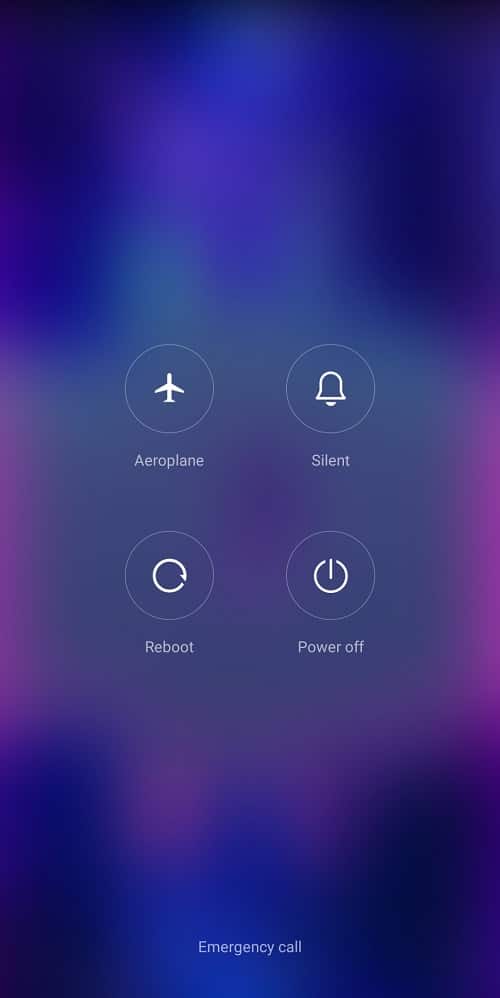
You can also try to start your smartphone again to restart TikTok on Android without deleting it or losing drafts. This is rather a simple process to follow which you can complete with the help of our guide on How to Restart or Reboot Your Android Phone?
Also Read: How to Restart TikTok on iPhone
Method 3: Force Stop TikTok
Another way to get TikTok started again is by force-stopping the application. This can be done easily on your Android device by following these steps:
First, tap and hold on the TikTok app icon.
Then, tap on App info.
Next, tap on FORCE STOP.
Then, restart TikTok after some time.
Method 4: Log In to TikTok Again
You can also try to restart TikTok on Android without deleting it or losing your drafts by logging into your account again. This can be done with the help of these simple steps:
Open the TikTok app and tap on the Profile tab.
Now, tap on the three lines present at the top right corner of the screen.
Now, tap on Settings and privacy.
Finally, tap on Log Out. Now, after some time, log into your account again.
Method 5: Change Your Username
Another method to restart the app is by changing your username which you can do so once every 30 days. To change your username:
- Go to your profile and tap the Edit Profile button.
- From there, tap on your current username and enter your new desired username.
Method 6: Update TikTok
The next great way to get TikTok to restart on Android is by updating it on your phone without deleting it or losing any drafts. To do so:
- Open the Google Play Store on your device and search for TikTok.
- Now, tap on the Update button.
Once done, the app will refresh and start again.
Method 7: Clear TikTok Cache
Moving forward, the next solution involves clearing the TikTok app cache to enhance its usage and restart it. This can be done by following the steps below:
- Open the TikTok app and open your Profile.
- Tap on the hamburger icon to open its Settings and privacy section.
- Now, tap on Free up space under the Cache & Cellular section.
- Next, tap on Clear to get rid of the Cache.
Whether you’re a seasoned TikTok user or just starting, it’s important to know how to safely restart the app without losing your drafts or deleting your account. By following the steps outlined in this guide, you can confidently restart TikTok on Android and get back to creating or sharing content in no time. This marks the end of the guide, keep visiting our page for more cool tips and tricks! Do not hesitate to leave your comments & suggestions below.