How to Fix Sign-in Issues in Gmail? Problem Signing in Gmail
Let’s take a look at some of the best ways to fix your issue.
Method 1: Check Internet Connection
A weak or unstable internet connection is one of the most common reasons Gmail won’t let you sign in. Make sure your Wi-Fi or mobile data is working properly. Try loading another website to confirm. If nothing opens, restart your router or switch to mobile data for a quick test.
Method 2: Try Alternative Browser
Sometimes the problem isn’t Gmail but the browser itself. If Gmail won’t sign you in on Chrome, try Firefox, Edge, or Safari. Switching browsers can help you figure out if the issue is browser-related.
Method 3: Verify Gmail Credentials
Double-check your email address and password. Even a small typo can stop you from signing in. Make sure Caps Lock isn’t on and that you’re entering the correct account details.
Method 4: Try Another Network
If Gmail still won’t load, your current network might be blocking it. Try connecting to another Wi-Fi or use mobile data instead. This quick switch can help if the issue is with the network provider or firewall settings.
Method 5: Check if Gmail is Down
Sometimes the problem isn’t on your end at all. Google services can have temporary outages. Visit websites like DownDetector or Google’s Workspace Status page to see if Gmail is facing downtime.
Method 6: Disable VPN or Third-Party Software
VPNs or security software may sometimes block Gmail sign-ins. If you’re using a VPN, turn it off and try again. Also, check if any antivirus or firewall app is interfering with Gmail.
Method 7: Update Browser or App
Outdated versions of browsers or the Gmail app can cause login errors. Check for updates in your browser or app store and install the latest version. This ensures compatibility and fixes known bugs.
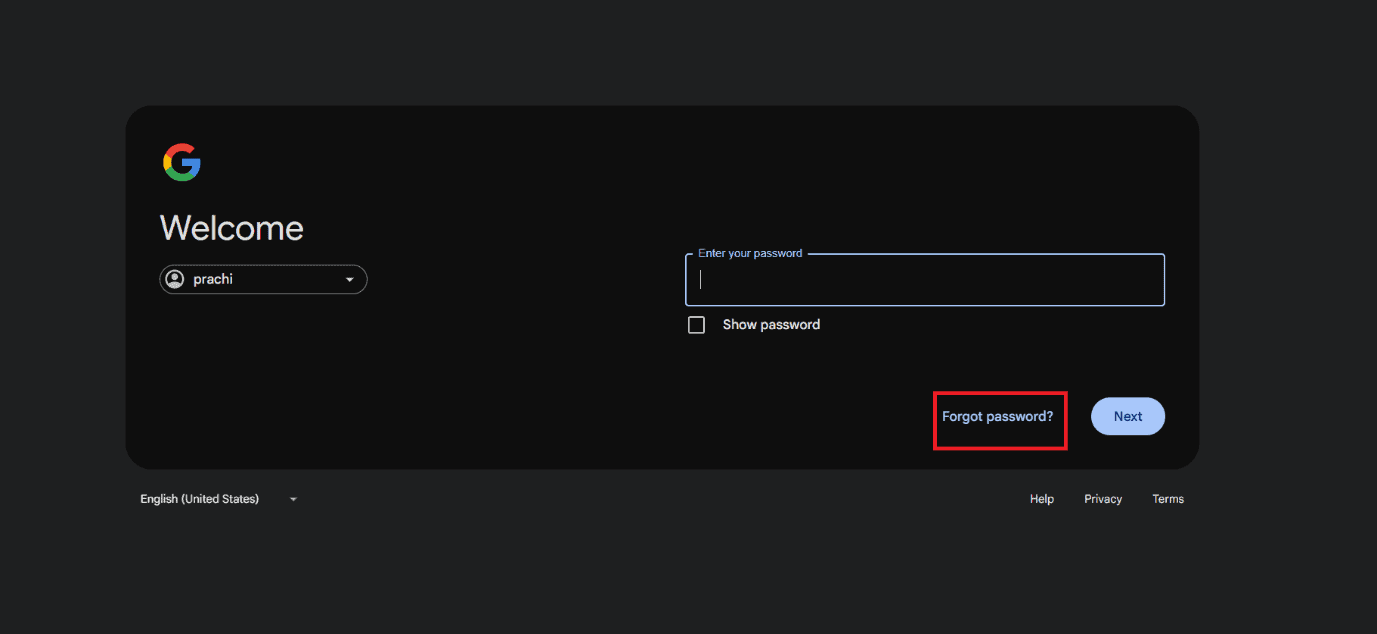
Method 8: Reset Gmail Login
If you have been trying to log in for some time but Gmail does not let you do so, try changing your password:
This way, you can try relogging and fix sign-in issues in Gmail.
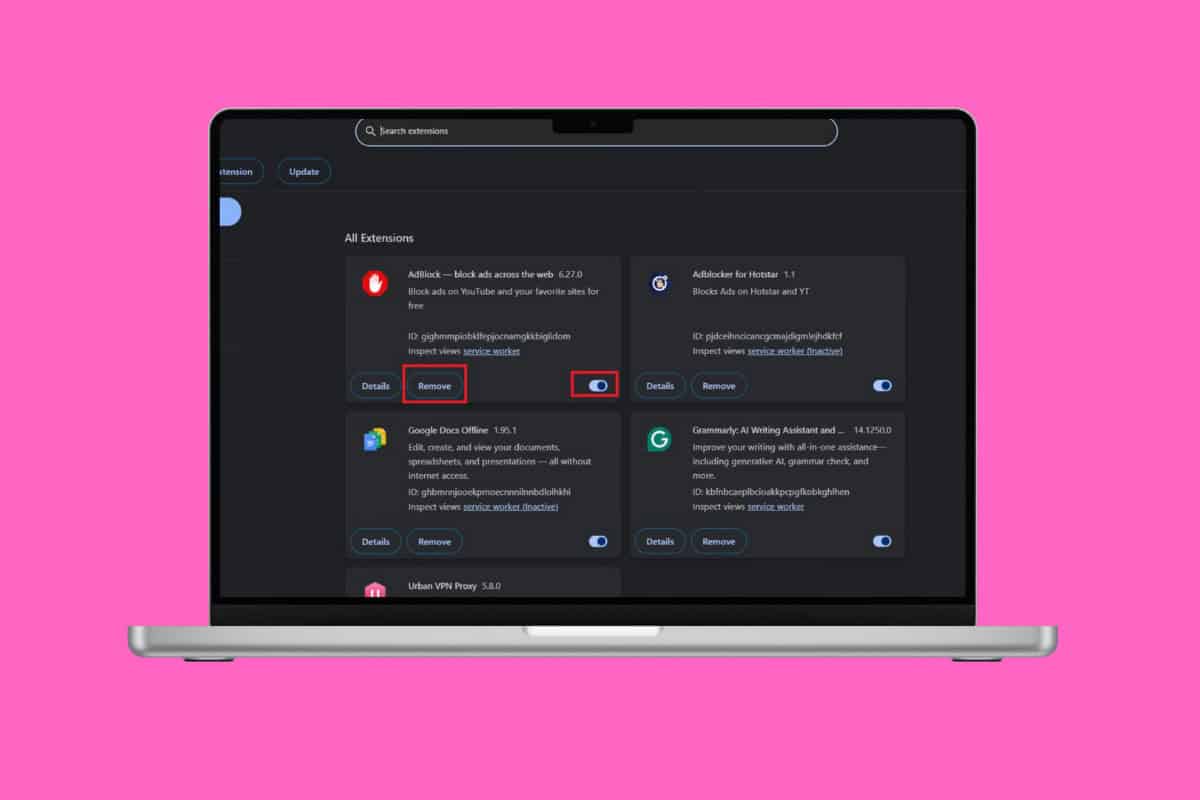
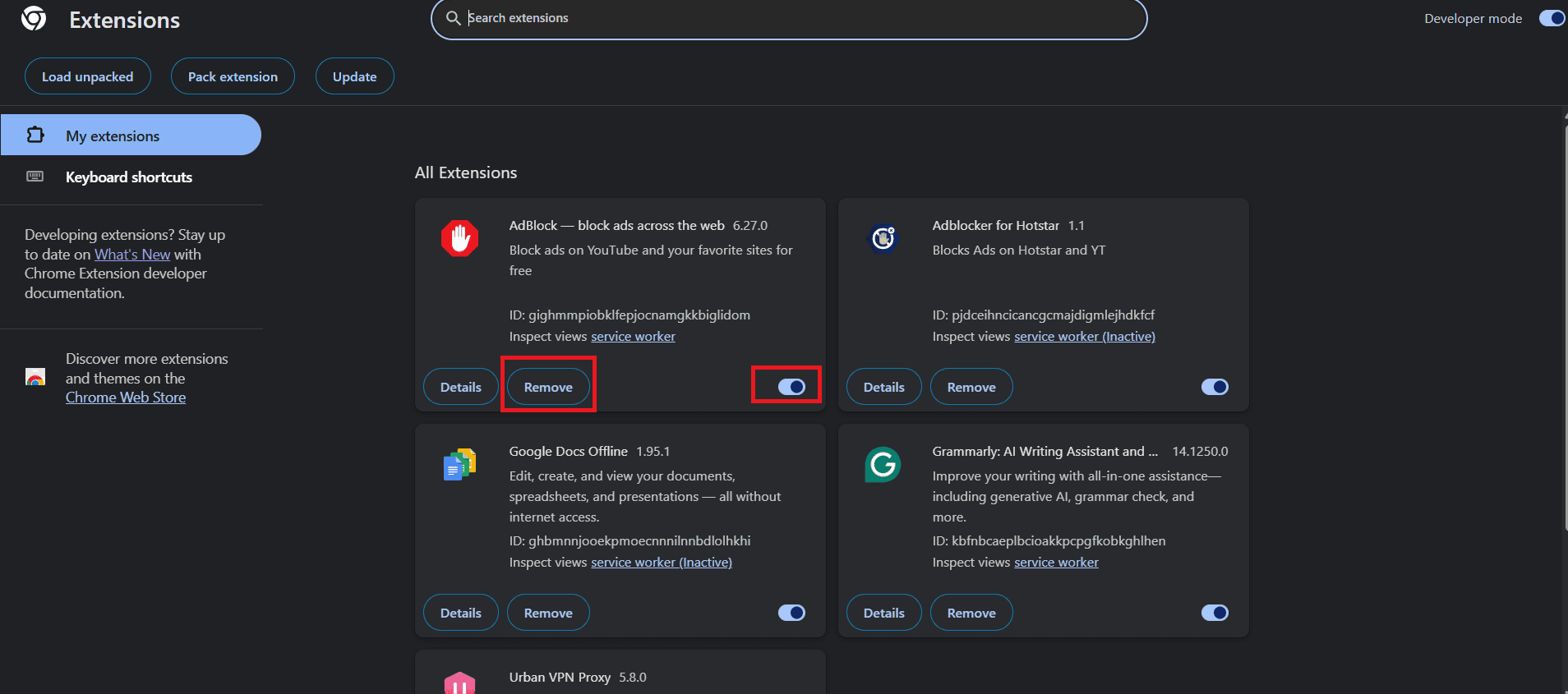
Method 9: Disable Browser Extensions
Browser extensions can often lag other platform processes. Therefore, turn them off when you use important sites.
The extension will no longer cause app issues.
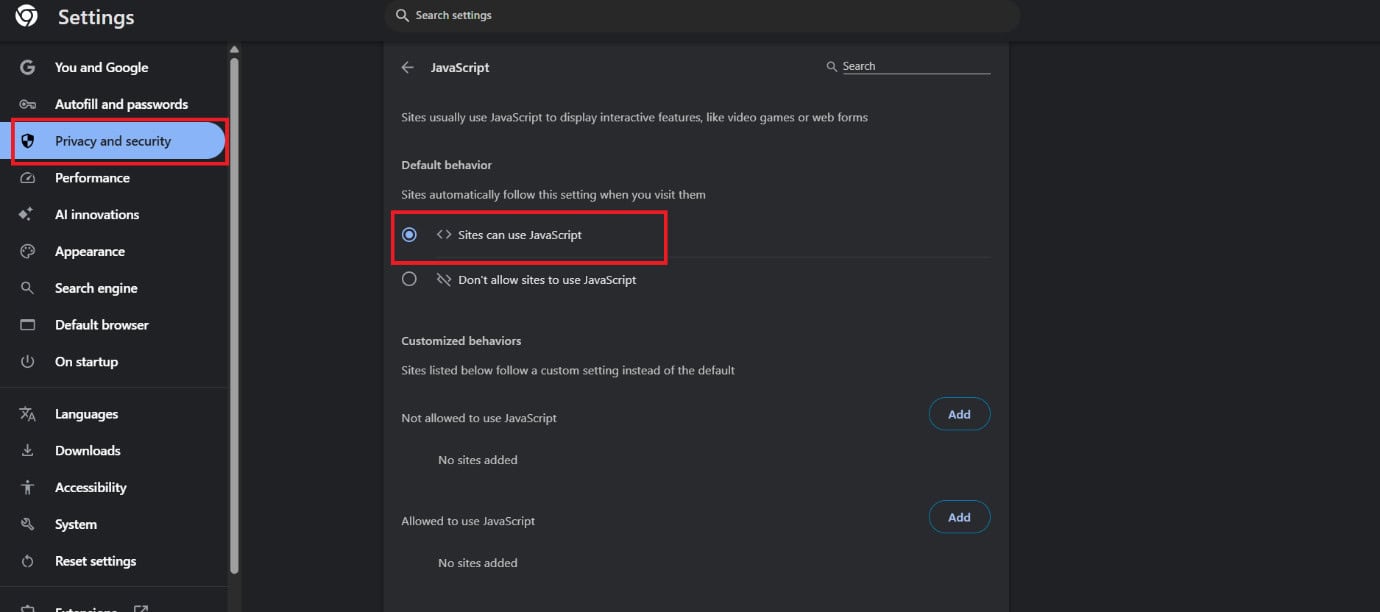
Method 10: Check JavaScript is Enabled
JavaScript feature should always be enabled for your desktop to read emails. Here’s how you can check the same:
Gmail will be able to see your content.
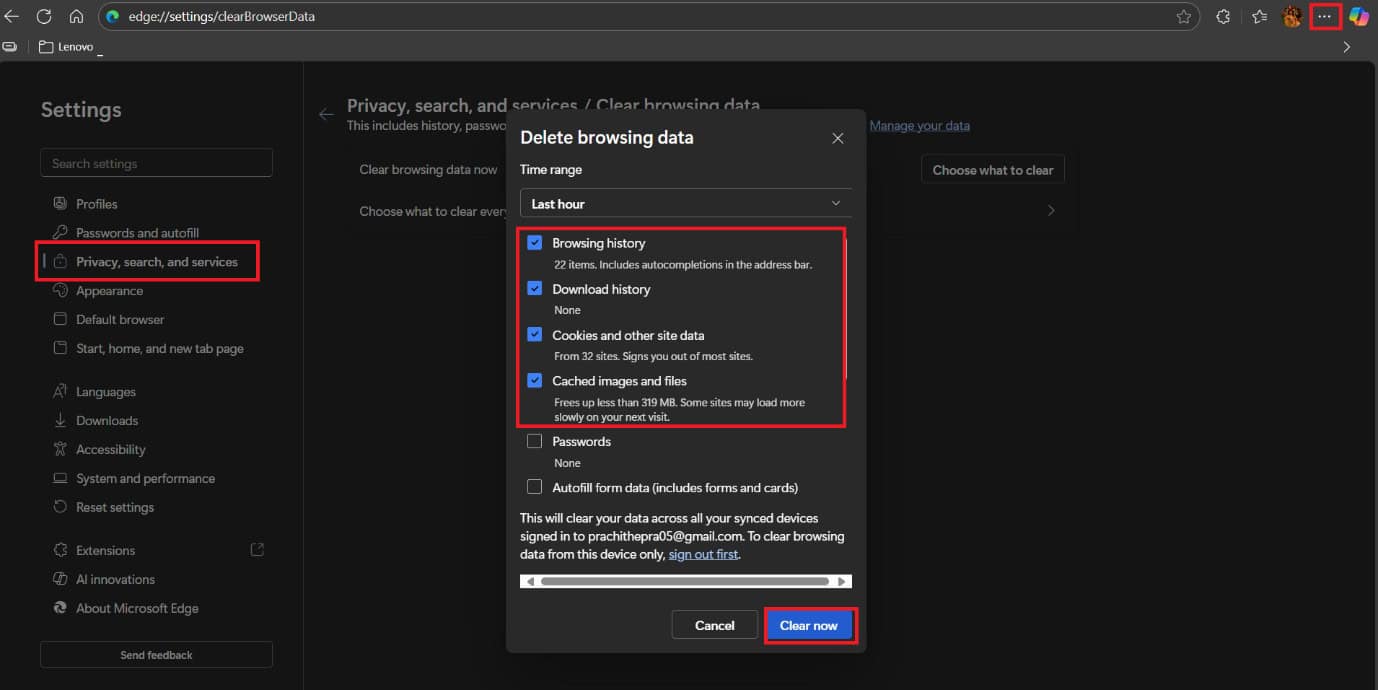
Method 11: Clear Browser Cache and Data
Long store of cache and browser data can also mess with other platforms.
Your data will be cleared.
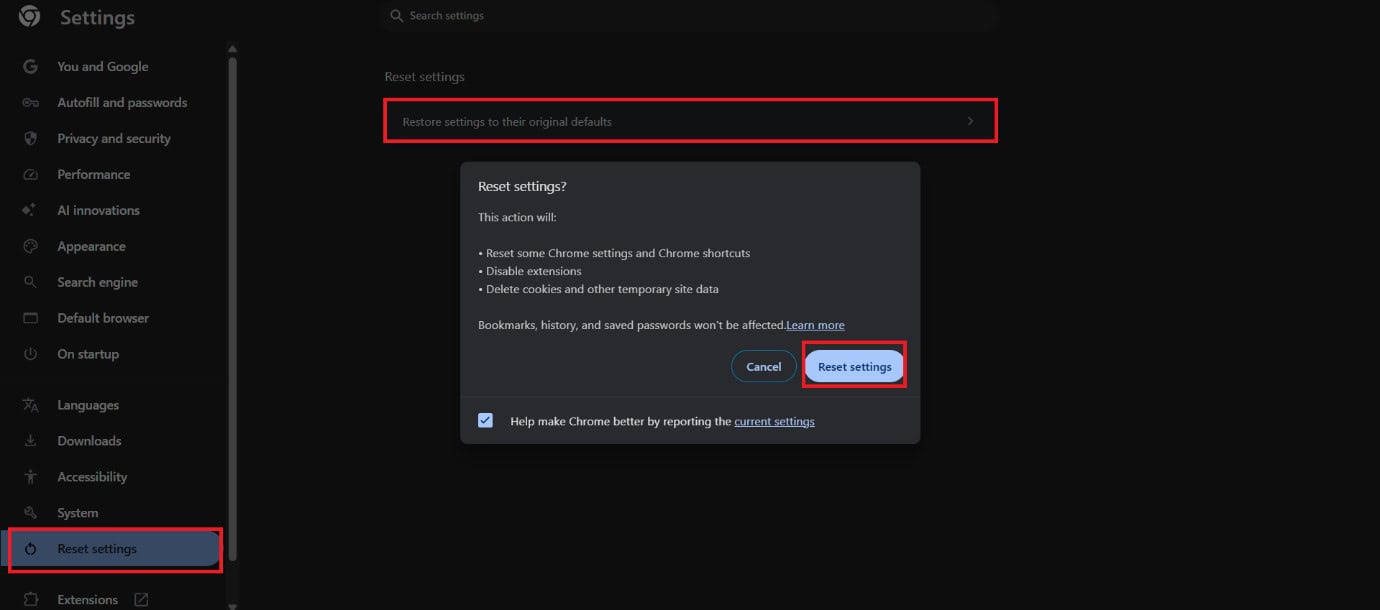
Method 12: Reset the browser
If you have accidentally turned on a setting causing Gmail to glitch, then you may have to bring all settings to normal:
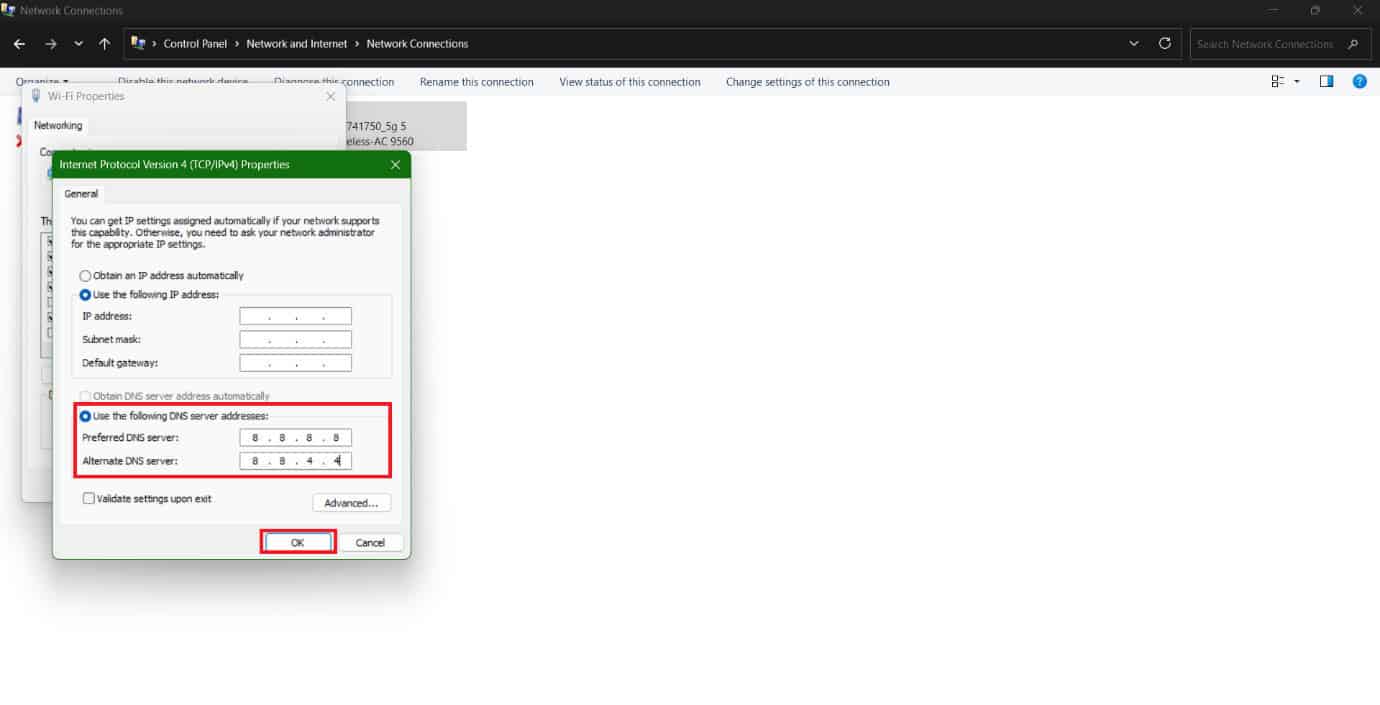
Method 13: Switch to Google DNS
You can also switch networks:
Check if your issue is fixed.
Method 14: Switch to Third-Party Email Client
If Gmail keeps giving you trouble in the browser, you can try signing in through an email client like Outlook, Thunderbird, or Apple Mail. These apps often bypass temporary browser issues and let you access your emails smoothly. Just add your Gmail account in the client, and you’ll be able to send and receive messages without a hitch. Also Read: How to Log Out of Gmail App on Android, iPhone, and iPad Now you will no longer have a difficult time figuring out how to unsync contacts from Instagram after following this guide. For more helpful tips and tricks, stay tuned, and feel free to share your suggestions in the comments below.