Fix Android.Process.Media Has Stopped Error
There could be many reasons for the android.process.media has stopped error, such as:
Media storage and download manager issue Malicious or malware attack Failure of firmware upgrade on the phone.
Note: Backing up your Android data is highly recommended before you move on to fixing the problem.
Method 1: Clear Android Cache and Data
Clearing cache and data of different apps is a very basic yet effective solutions for most problems. For this error particularly, you will need to clear cache and data for Google Services Framework as well as Google Play Store. Option I. CLEAR GOOGLE SERVICES FRAMEWORK DATA AND CACHE
Go to Settings on your Android device.
Go to App Settings section.
Tap on ‘Installed apps’.
Search for ‘Google Services Framework’ and tap on it.
Tap on clear data and clear cache.
Option II. CLEAR GOOGLE PLAY STORE DATA AND CACHE
Go to Settings > App Settings > Installed apps as before. 2 . Search for ‘Google Play Store’. Tap on it.
Tap on clear data and clear cache.
Now, go back to Google Services Framework and tap on ‘Force Stop’ and clear cache again.
Then, restart your Android device. Check if you’re able to Fix Android.Process.Media Has Stopped Error or not. Also Read: What Happens When You Clear Spotify Cache?
Method 2: Disable Media Storage and Download Manager
If the error persists, clear the cache and data forDownload Manager and Media Storage as well. Additionally you can force stop or disable them as explained below:
Go to Settings on your Android device.
Go to Apps > ‘Installed apps’.
Here, tap on the three-dot menu icon on the top right corner of the screen and select ‘Show all apps’.
Now search for Media storage (or Download manager app) then tap on Force Stop.
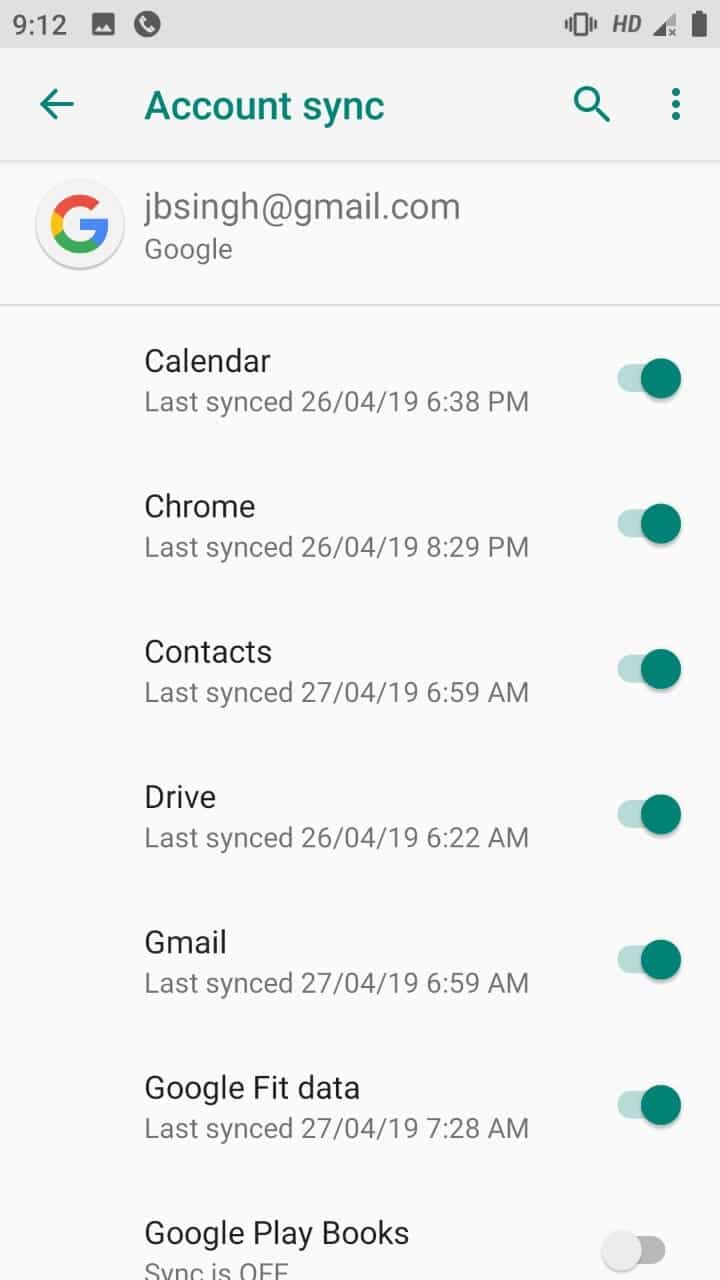
Method 3: Disable and Re-Enable Google Sync
Try disabling Google Sync and then re-enable it to avoid Android.media.process stopped error.
Go to Android Settings.
Move on to Accounts >Sync.
Tap on Google.
Uncheck all the sync options for your Google account.
Switch off your Android device. Switch ON your device after a while.
Go back to Settings > App Settings section.
Enable Google Play Store, Google Services Framework, Media Storage and Download manager.
Go back to Settings and navigate to Accounts>Sync.
Tap on Google.
Turn on the sync for your Google account.
Also Read: How to Enable or Disable Google Sync
Method 4: Reset App Preferences
To resolve all conflict of media files with apps, it is best to reset app preferences. You can allow permissions to apps thereafter to access and view media files.
Go to Settings > App Settings > Installed apps.
Next, tap on the three-dot icon on the top right corner of the screen and select ‘Reset app preferences’.
Click on ‘Reset apps’ to confirm.
Method 5: Clear Contacts and Dialer App
Just like method 1, clear cache data for contacts and its storage to fix said issue. Note: You should take contacts backup as this step may erase your contacts.
Go to Settings > App Settings > Installed apps.
Tap on the three-dot menu icon on the top right corner of the screen and select ‘Show all apps’.
Now search for Contacts Storage and tap on it.
Tap clear data and clear cache for this app.
Follow the above-mentioned steps for ‘Contacts and dialer’ app also.
Also Read: How to Set Different Notification Sounds on Android for Contacts
Method 6: Update Firmware
Ensure a stable Wi-Fi or internet connection before moving on. As good practice, you should update your Android phone from time to time.
Go to Settings on your Android smartphone.
Tap on ‘About phone’.
Tap on ‘System update’ or ‘Software update’.
Tap on ‘check for updates’. In some phones, this happens automatically.
Download the latest update, if available.
Method 7: Factory Reset
Doing a hard reset on your device will restore it to its original state, and all data will be removed. So, perform factory reset of Android phone only if nothing has helped so far. You can visit authorized service center to get it done safely too. Read our guide here to factory reset your Samsung smartphone. Recommended: How Often Should You Reset an Android Smartphone? We hope this article was helpful and you can now easily Fix Android.Process.Media Has Stopped Error, but if you still have any questions regarding this tutorial, please ask them in the comment’s section.