How to Paste Values Without Formulas in Excel
Method 1: Use the copy-paste method
You can easily copy and paste the values without formulas in Excel using the copy and paste options from your clipboard section.
Open the Microsoft Excel sheet.
Now, select the values you wish to copy and paste to another cell or sheet.
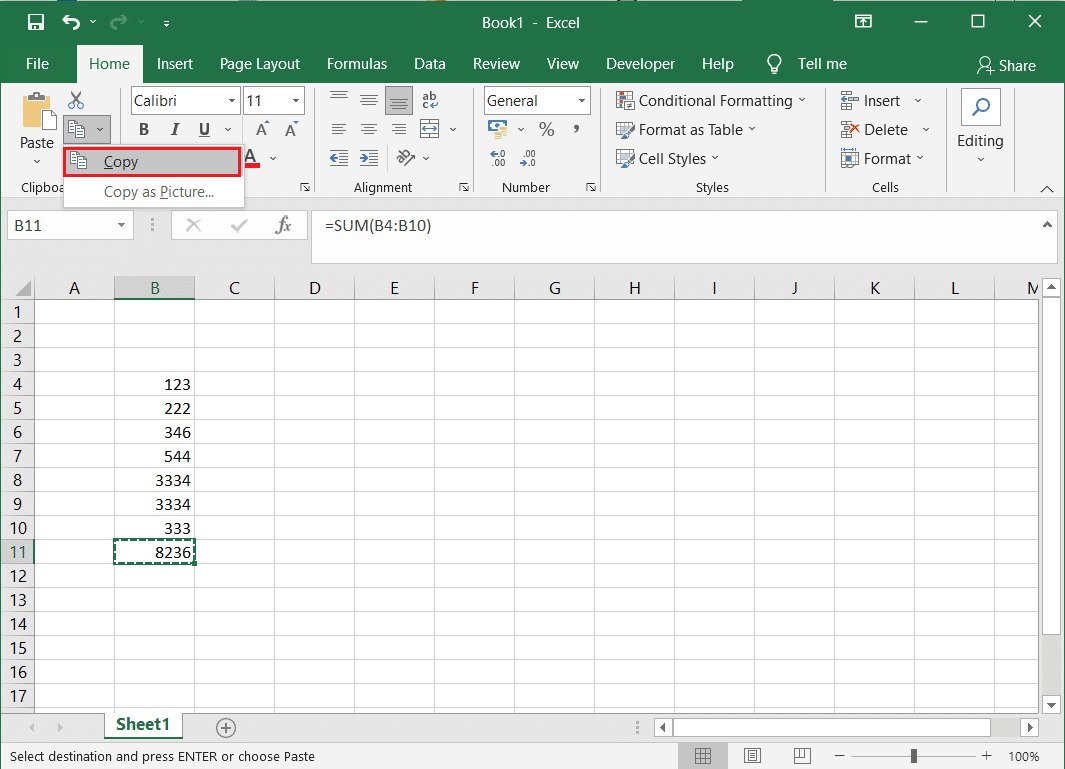
After selecting the cell, click on the home tab from your clipboard section at the top and select copy. In our case, we are copying the value that we have calculated with the SUM formula. Check the screenshot for reference.
Now, go to the cell where you wish to paste the value.
From your clipboard section, click on the drop-down menu below paste.
Finally, you can click on values (V) under paste values to paste the value in the cell without any formula.
Also Read: How to Swap Columns or Rows in Excel
Method 2: Use Kutools add-in
If you don’t know how to automatically copy excel values, not formulas, you can use the Kutools extension for Excel. Kutools for Excel can come in handy when you want to copy the actual values without the formulas.
Download Kutools add-in for your excel.
After successfully installing the add-in, open your excel sheet and select the values you wish to copy.
Make a right-click and copy the value.
Go to the cell to paste the value and make a right-click to paste the value.
Now, remove the formula from the value. Click on the Kutools tab from the top and select To Actual.
Finally, the actual function will remove the formulas from the values that you are pasting. Recommended: How To Lock Or Unlock Cells In Excel? We hope this guide was helpful and you were able to copy and paste values without formulas in Excel. Still, if you have any doubts, then feel free to ask them in the comment section.