How to Change Samsung Account Email
Samsung account email refers to the email address associated with your Samsung account. It is the email used for registering and accessing various Samsung services and devices, such as smartphones, tablets, smart TVs, and other products. Keep reading to change your Samsung account email.
Can I Change My Email Address on My Samsung Account? Can I Change Email Address on Samsung Account?
Yes, Samsung allows its users to change email address because Samsung knows that users may need to keep their email id private to themselves or delete the email id as a whole. It is very easy to do. Just follow the steps mentioned earlier in the article to modify email address on your Samsung account. Follow the below steps to change email address on your Samsung account:
- Visit the Samsung account sign in page and log in to your account.
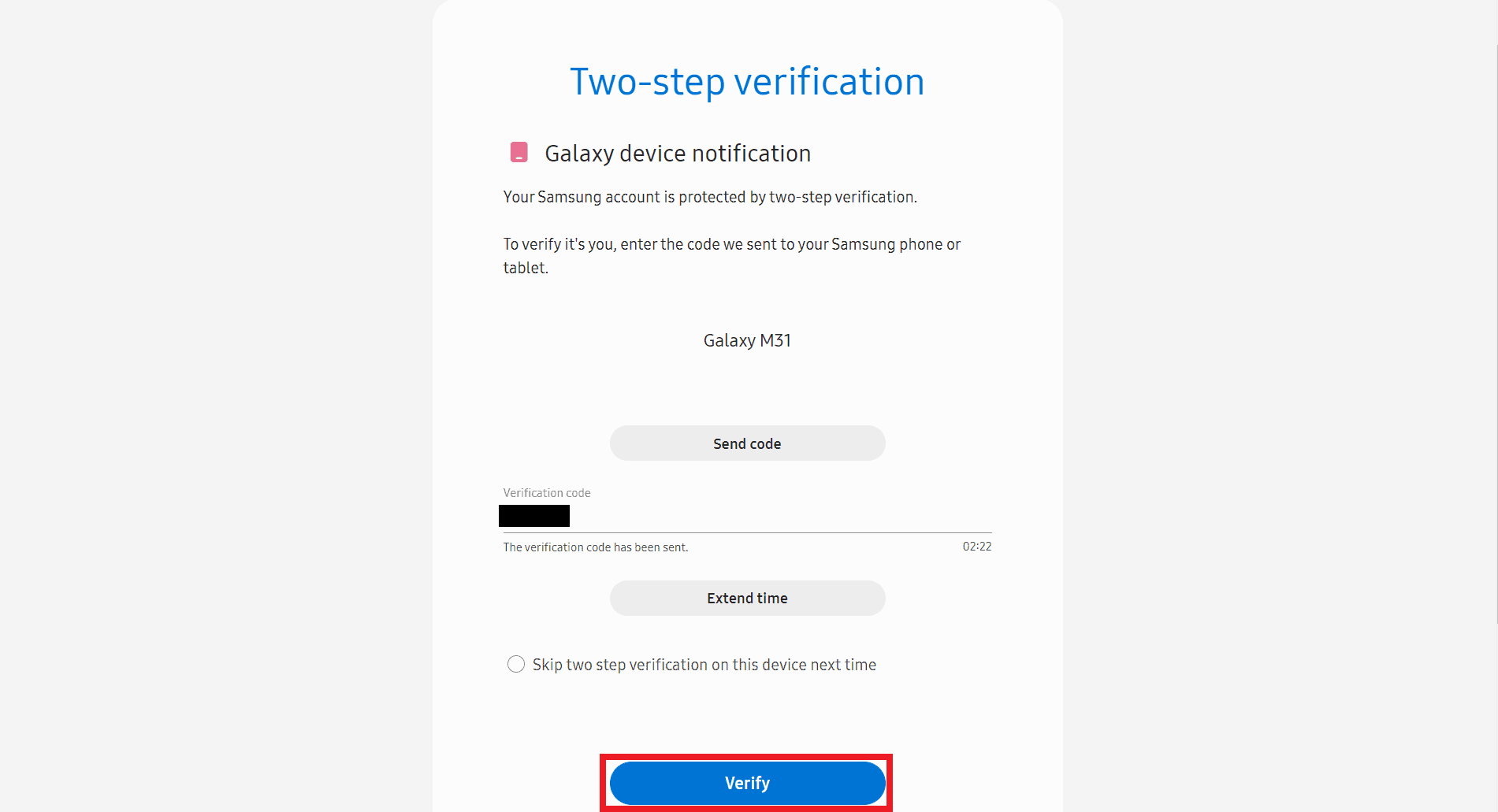
- Enter the verification code and click on Verify.
- Then, click on Profile > Manage Samsung account > Email ID field.
- Enter the new email address in the respective field and click on Change.
- Verify the email ID using the verification OTP.
How to Change Samsung Account Email on Phone
For changing your Email address associated with your Samsung account through your Galaxy phone, you can follow these steps.
Open the Settings of your Samsung device.
Tap on your Samsung account from the top.
Tap on the Profile info option.
Tap on the Email field.
Then, tap on Change.
Enter your new email address and tap on Change.
Enter a verification code from the new email address provided by you and tap on Verify.
Then, enter your Samsung account password and tap on Confirm. You will be logged out of your Samsung account.
Now, tap on Sign in.
Enter your new email address and tap on Next.
Now, enter your password and tap on Sign in.
Agree to all the terms and conditions that you are prompted to accept.
How Do I Unlink My Email from My Samsung Account?
Unlink my email from my Samsung account means modifying your Email ID, and it is very easy to do it. Here are the steps that will guide you to unlink your email from your Samsung account. Note: Keep an alternate email address ready for use.
Visit the Samsung account sign in page on your desktop browser.
Sign in to your Samsung account with your Email or phone number and Password.
Enter the code in the highlighted field, as shown below, and click on Verify.
Then, click on the Profile option from the top.
Click on Manage Samsung account.
Click on the Email ID field.
Enter the new email address in the respective field and click on Change.
Verify the email ID using the verification OTP. Also Read: How to Change Your Email on Instagram
How to Change Samsung Account Email
Samsung allows its customers to easily modify the Email associated with their Samsung account. Follow the steps mentioned above to easily modify the email ID associated with your Samsung Account.
How Do I Change My Primary Email on My Samsung? How to Change Primary Email on Samsung
Modifying your Samsung account primary email ID is very easy to do it. Samsung knows that sometimes users switch over to a new email address or users don’t want to use the current email address anymore. You can follow the steps mentioned above to change it via the Samsung account login page through the browser. Also Read: How to Change Phone Number on Samsung Account
How to Change Samsung Account Email S10
Changing your email address associated with your Samsung account in your S10 phone is very easy to do. You can follow the steps mentioned above to do it. It is the same for every Samsung phone.
How to Change Samsung Account Email without Password
It is not possible to modify the email associated with your Samsung account without knowing the password for that account. The password is a security measure put in place to ensure that only the account owner has access to make changes to the account. Step I: Reset Samsung Account Password You can try to reset your Samsung account password by following these steps:
Navigate to the Samsung account sign in page on your desktop browser.
Enter your Email or phone number and click on Next.
Click on Forgot password?
Enter your Email or phone number and click on Reset password.
Enter your Name and Date of Birth and click on Continue.
Select the desired verification method and click on Continue.
Enter the received verification code and click on Verify.
Enter and confirm the new password and click on Next.
Your Samsung account password will be reset. Step II: Change Samsung Account Email Read and follow the steps mentioned earlier in this article to successfully modify your Samsung account email with the newly reset password. Recommended:
How to Delete PayPal History How to Create Multiple Uber Accounts How to Change Notification Sounds for Different Apps on Samsung How to Change Venmo Email
We hope that you learned about how to change your Samsung account email. Feel free to reach out to us with your queries and suggestions via the comments section below. Also, let us know what topic you want to learn about in our next article.