How to Fix Startup Repair Infinite Loop on Windows 10/8/7
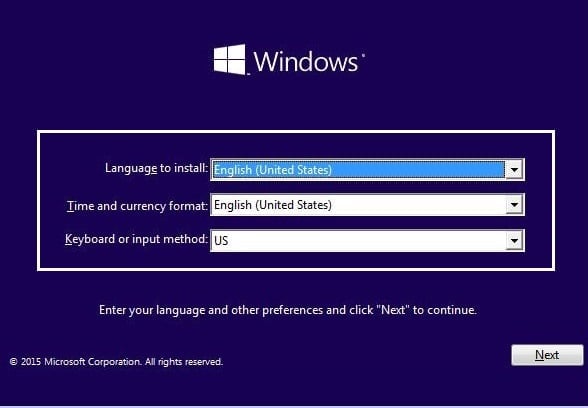
Make sure to create a restore point just in case something goes wrong. How to open Command Prompt when you can’t access Windows You will need to do so all the methods listed in this guide. a)Put in the Windows installation media or Recovery Drive/System Repair Disc and select your language preferences, and click Next.
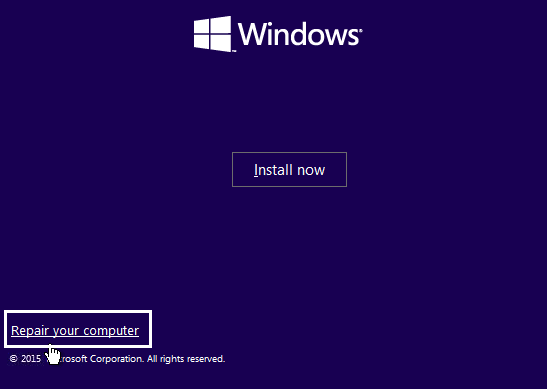
b)Click Repair your computer at the bottom.
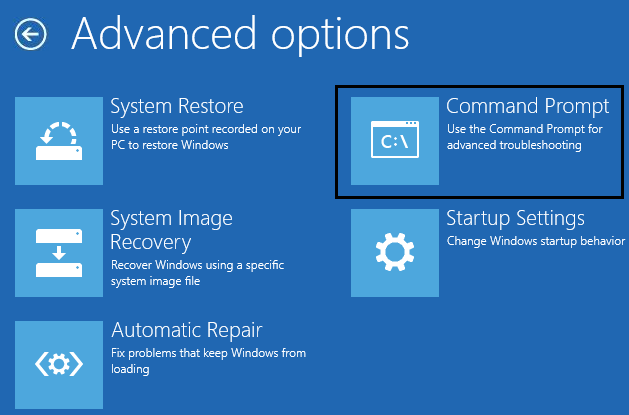
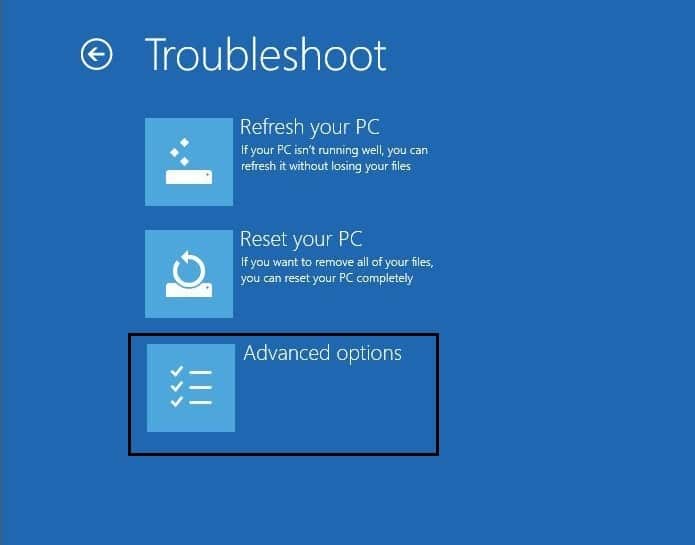
c)Now choose Troubleshoot and then Advanced Options.
d)Select Command Prompt (With networking) from the list of options.
Method 1: Rebooting Continuously After Installing Update, Driver or Programs
If you have a single operating system installed on your computer, then you have to boot your Windows in safe mode. To do so follow the below steps: 1.Press Windows Key + I to open Settings then click on Update & Security.
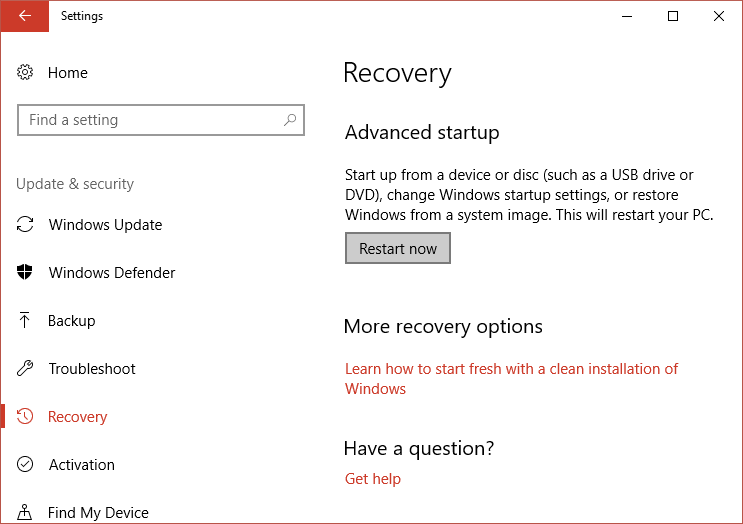
2.From the left-hand menu click on Recovery.
3.Under Advanced startup, click on Restart now.
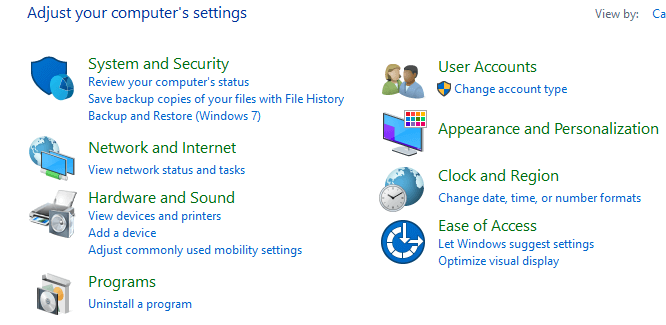
4.Once the computer restarts, then your PC will open in safe mode. Once you enter into the safe mode you will have below options to fix the problem of Startup Repair Infinite Loop on Windows: I. Uninstall recently Installed Programs 1.Open Control Panel by searching for it using the search bar.
2.Now from the Control Panel window click on Programs.
3.Under Programs and Features, click on View Installed Updates.
4.Here you will see the list of currently installed Windows updates.
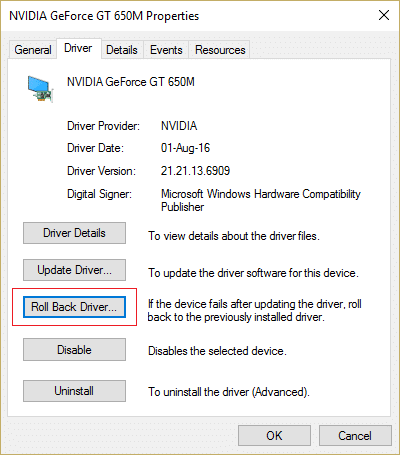
5.Uninstall the recently installed Windows updates which might be causing the issue and after uninstalling such updates your problem may be solved. II.Troubleshoot Driver problems For a driver related issue, you can use the ‘Rollback driver’ feature of the Device Manager on Windows. It will uninstall the current driver for a hardware device and will install the previously installed driver. In this example, we will rollback Graphics drivers, but in your case, you need to figure out which drivers were recently installed that is causing the infinite loop issue then only you need to follow the below steps: 1.Press Windows Key + R then type devmgmt.msc and hit Enter to open Device Manager.
2.Expand Display Adapter then right-click on your graphics card and select Properties.
3.Switch to Driver tab then click “Roll Back Driver“.
4.You will get a warning message, click Yes to continue. 5.Once your graphics driver is rolled back, reboot your PC to save changes.
Method 2: Disable Automatic Restart on System Failure
After a system failure occurs, Windows 10 automatically restart your PC to recover from the crash. Most of the time a simple restart is able to recover your system but in some cases, your PC might get into a restart loop. That’s why you need to disable automatic restart on system failure in Windows 10 in order to recover from the restart loop.
1.Open Command Prompt and enter the following command: bcdedit /set {default} recoveryenabled No
2.Restart and Automatic Startup Repair should be disabled. 3.If you need to again enable it, enter the following command in cmd: bcdedit /set {default} recoveryenabled Yes 4.Reboot to apply changes and this should Fix Automatic Repair Infinite Loop on Windows 10.
Method 3: Run chkdsk Command to check and repair Drive errors
1.Boot Windows from the bootable device. 2.Click on Command Prompt.
3.Type the below command in command prompt and hit the enter: chkdsk /f /r C:
4.Restart the system and see if you’re able to Fix Startup Repair Infinite Loop on Windows 10.
Method 4: Run Bootrec to repair damaged or corrupted BCD
Run the bootrec command to repair damaged or corrupted BCD settings by following below steps: 1.Again open Command Prompt using the above guide.
2.Type the below commands in the command prompt and hit Enter after each one:
3.Restart the system and let bootrec repair the errors. 4.If the above command fails then enter the following commands in cmd:
5.Finally, exit the cmd and restart your Windows. 6.This method seems to Fix Startup Repair Infinite Loop on Windows 10 but if it doesn’t work for you then continue. Also read: Why Computer Crashes While Playing Games?
Method 5: Perform a System Restore
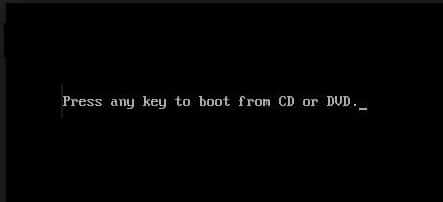
By performing the system restore you can fix the Startup Repair Infinite Loop issue by following the below steps: 1.Insert the Windows 10 bootable installation DVD and restart your PC. 2.When prompted to Press any key to boot from CD or DVD, press any key to continue.
3.Select your language preferences, and click Next. Click Repair your computer in the bottom-left.
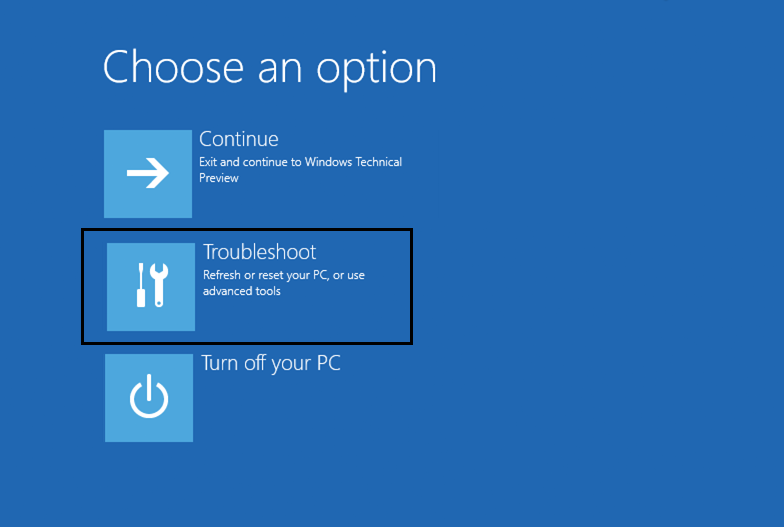
4.On choose an option screen, click Troubleshoot.
5.On Troubleshoot screen, click Advanced option.
6.On the Advanced options screen, click System Restore. 7. Follow the onscreen instructions and restore your computer to an earlier point.
Method 6: Restore Windows Registry
Bringing the Windows registry keys to their default values will certainly help resolve any and all issues with Windows PCs. 1.Enter the installation or recovery media and boot from it. 2.Select your language preferences, and click next.
3.After selecting language press Shift + F10 to command prompt. 4.Type the following command in command prompt: cd C:\windows\system32\logfiles\srt\ (change your drive letter accordingly)
5.Now type this to open the file in notepad: SrtTrail.txt 6.Press CTRL + O then from file type select “All files” and navigate to C:\windows\system32 then right click CMD and select Run as administrator.
7.Type the following command in cmd: cd C:\windows\system32\config 8.Rename Default, Software, SAM, System and Security files to .bak to back up those files. 9.To do so type the following command: (a) rename DEFAULT DEFAULT.bak (b) rename SAM SAM.bak (c) rename SECURITY SECURITY.bak (d) rename SOFTWARE SOFTWARE.bak (e) rename SYSTEM SYSTEM.bak
10.Now type the following command in cmd: copy c:\windows\system32\config\RegBack c:\windows\system32\config 11.Restart your PC to see if you can boot to windows.
Method 7: Delete the problematic files
If any system files are corrupt, its best to delete them using command prompt as explained below: 1.Access Command Prompt again and enter the following command: cd C:\Windows\System32\LogFiles\Srt SrtTrail.txt
2.When the file opens you should see something like this: Boot critical file c:\windows\system32\drivers\tmel.sys is corrupt.
3.Delete the problematic file by entering the following command in cmd: cd c:\windows\system32\drivers del tmel.sys
NOTE: Don’t delete drivers which are essential for windows to load the operating system
Method 8: Set correct values of device partition and osdevice partition
1.In Command Prompt type the following and press enter: bcdedit
2.Now find the values of device partition and osdevice partition and make sure their values are correct or set to correct partition. 3.By default value is C: because windows pre-installed on this partition only. 4.If by any reason it is changed to any other drive then enter the following commands and press Enter after each one: bcdedit /set {default} device partition=c: bcdedit /set {default} osdevice partition=c:
Note: If you have installed your windows on any other drive make sure you use that one instead of C: 5.Reboot your PC to save changes and this should fix Automatic Repair infinite loop on Windows 10. Recommended: Can’t log in to Windows 10? Fix Windows Login Problems! We hope this article was helpful and you can now easily Fix Startup Repair Infinite or Endless Reboot Loop on Windows 10/8/7, but if you still have any questions regarding this tutorial then feel free to ask them in the comment’s section.