5 Ways to Fix Blurry iMessage Photos and Videos
Now you don’t have to waste your time in changing the platforms to share any media, you can check out these solutions.
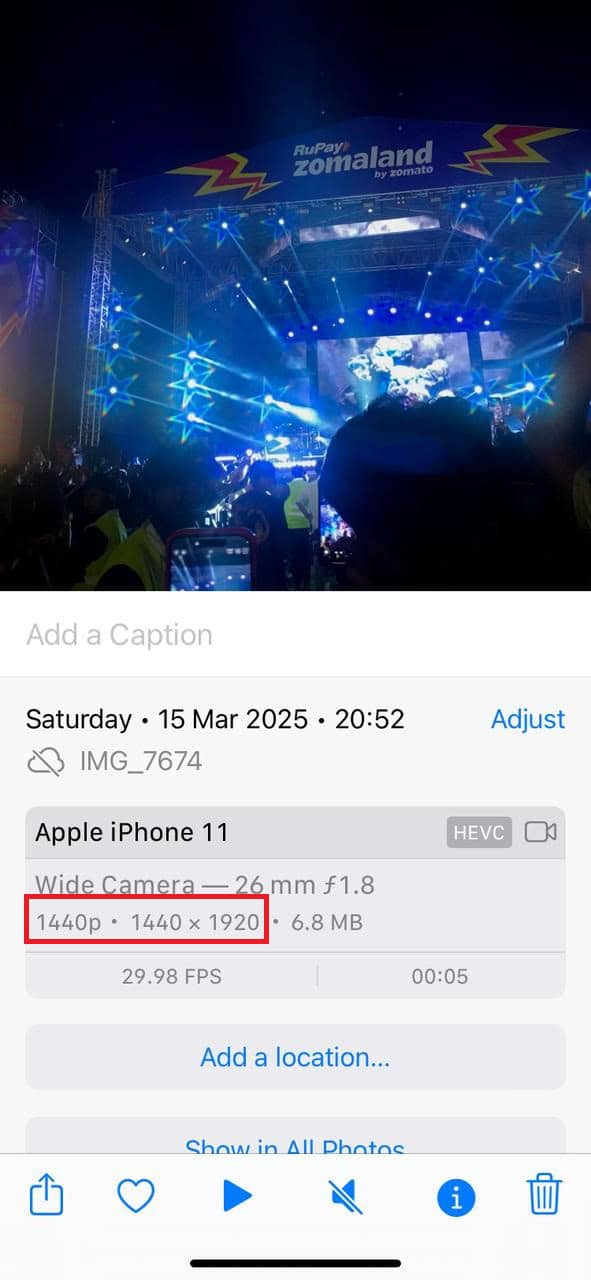
Method 1: Check Image/ Video Resolution
The first and foremost solution is to ensure the original media is taken in high quality. Here’s how you can check the same:
This way you will be informed beforehand whether the image is already in a low quality or not.
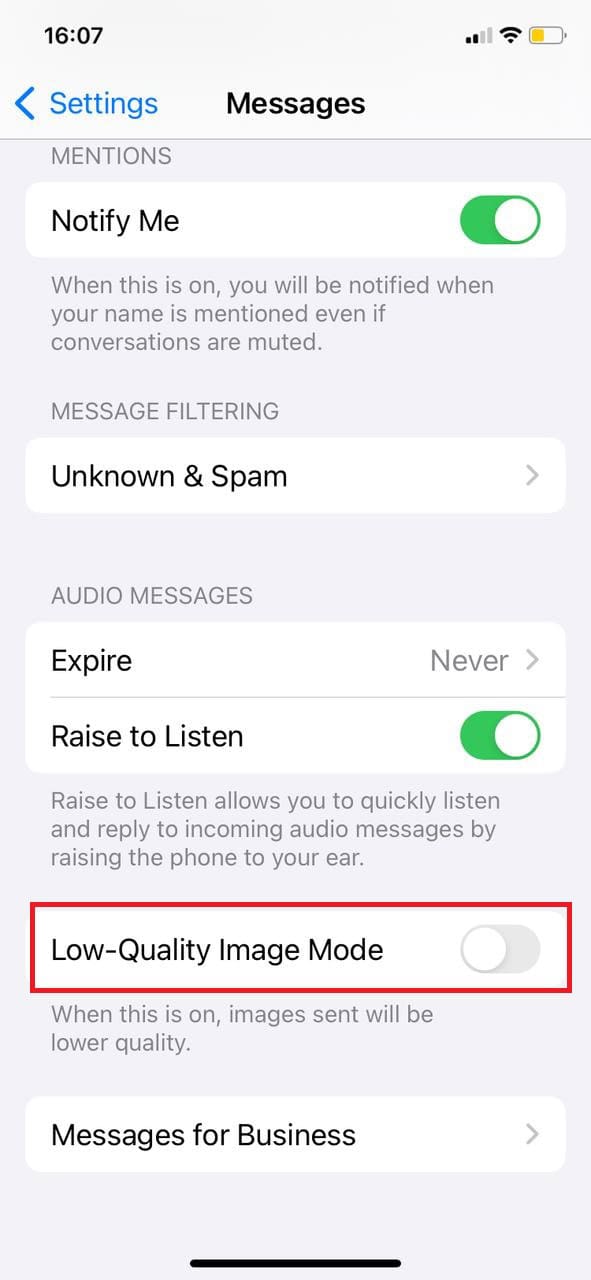
Method 2: Disable Low-Quality Image Mode
iMessage offers users the option to automatically send pictures in a low-quality mode to save their data. If you suspect you have this mode on, follow to disable the same:
Now you can send images without worry about their quality.
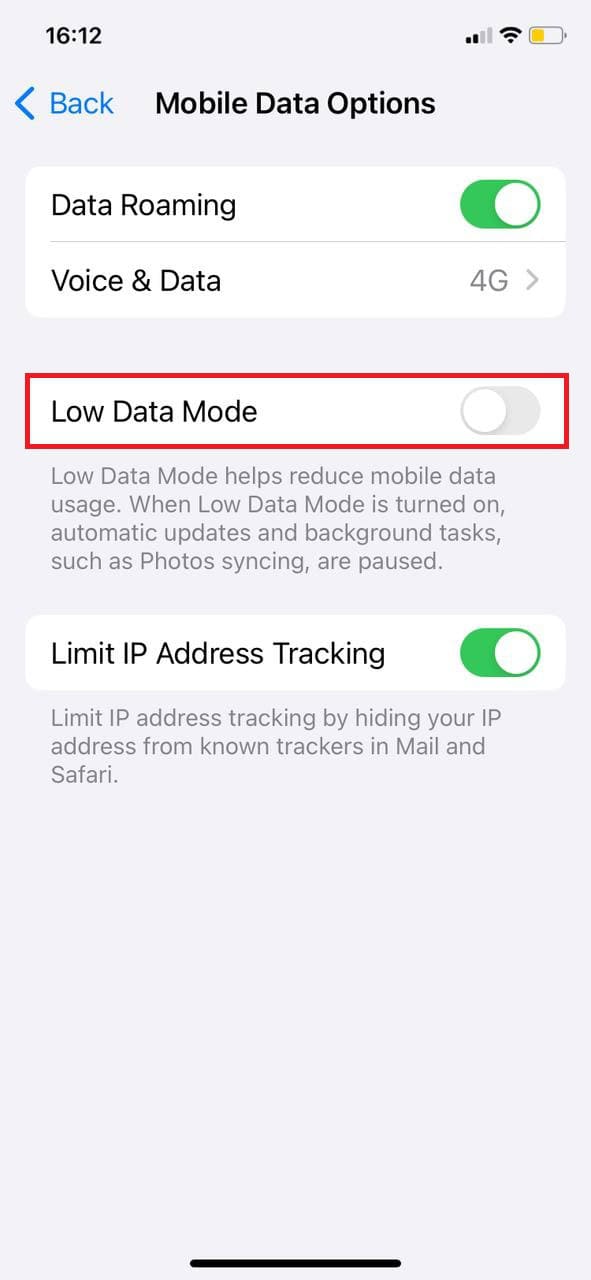
Method 3: Disable Low Data Mode
Low Data Mode helps the user save their mobile data by sending low-quality pictures including iMessage. Here’s how you can turn it off:
This way you can go back to sending original quality content on iMessage.
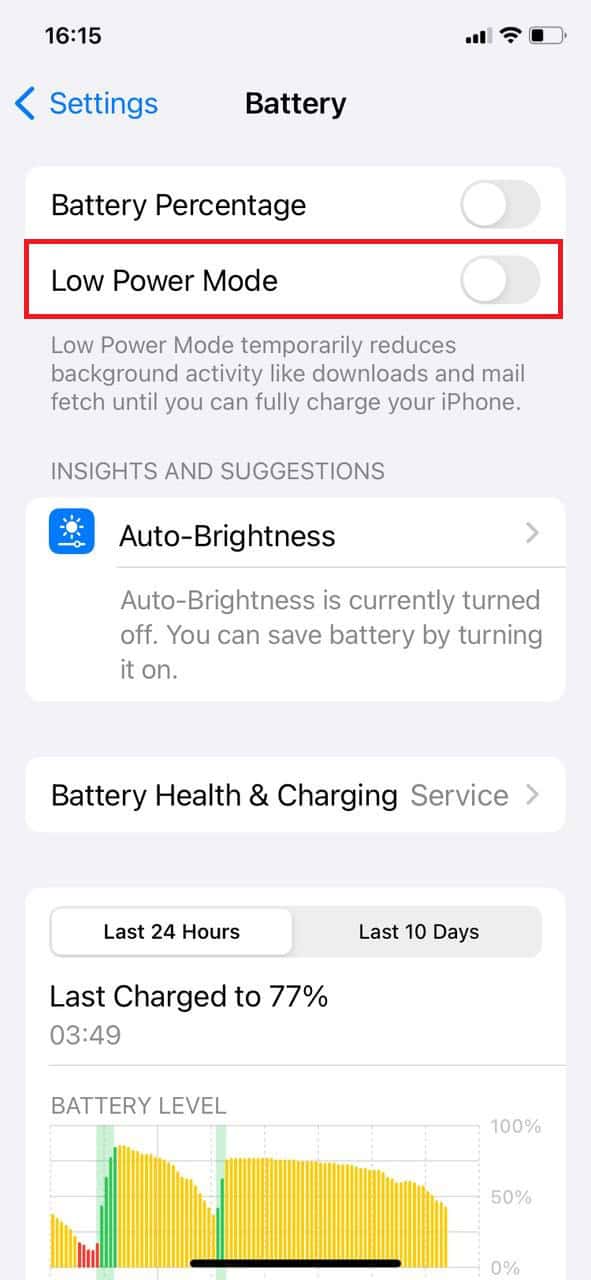
Method 4: Disable Low Power Mode
Similarly, you can also turn off the Low Power Mode. Check out the steps mentioned below:
Enjoy sending pictures and videos of high quality.
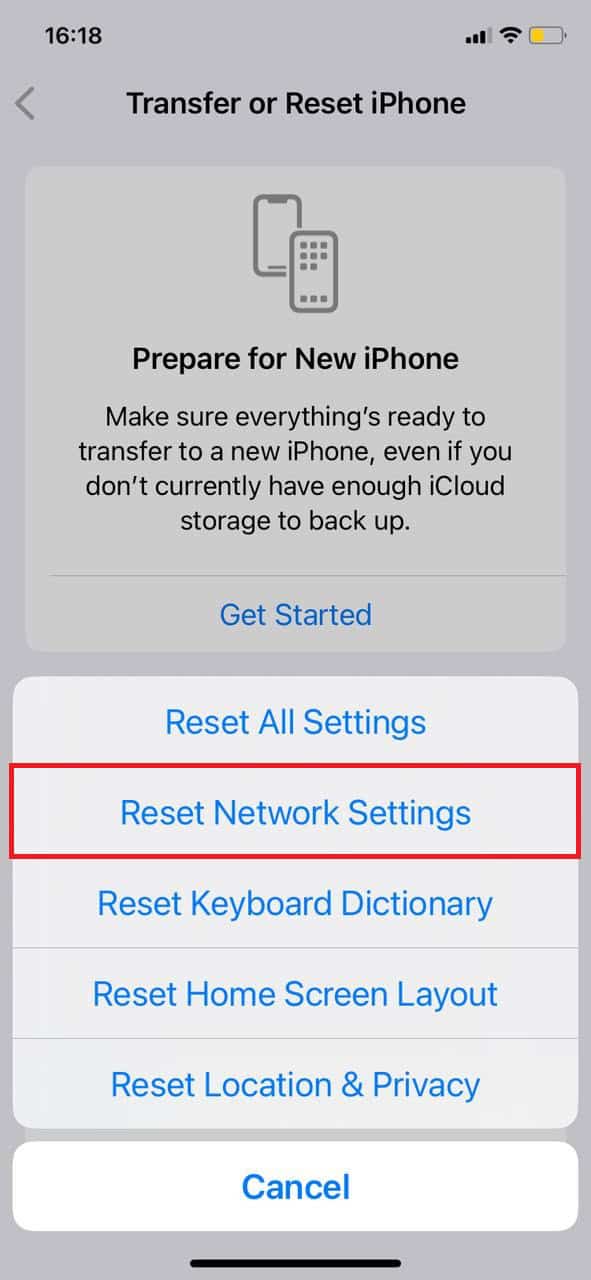
Method 5: Reset Network Settings
Lastly, if none of the workarounds solve your issue, then you may be facing a network settings issue. Resetting it back to normal can bring back the original settings.
Open iMessage and send media to check if your problem is solved. Also Read: How to Use iMessage Without a SIM or Phone Number By following the methods shown in this guide, we hope that now you have understood the top 5 ways to fix blurry iMessage photos and videos. Do not hesitate to drop a comment or suggestions in case you have any queries. Keep visiting TechCult to learn more tech-related walkarounds.